
GETTING STARTED · ABOUT 10 MINUTES
Guide
Deepline runs the official Stockfish 19 on a powerful cloud server that you rent by the hour in your own Verda account. You use it in ChessBase on Windows, in the Deepline Windows app and on your Android phone. You pay Verda only while a server is running.
1. Your Verda account
Verda is the cloud company whose servers run your engine. Every player uses their own account, so you pay Verda directly, at Verda's price.
- Sign up at verda.com and log in to the console.
- In the sidebar open Credentials (in some versions: Keys), then Cloud API credentials and click + Create.
- Copy the Client ID and the Client Secret. Verda shows the secret only once, so keep it somewhere safe. Lost it? Just create new credentials.
- Add some money before your first analysis (Billing & settings, then Top-up). Connecting needs no money. As a guide, $10 is about 50 hours at ~10,000 kN/s, or about 2.3 hours at ~300,000 kN/s.
Tip: turn on Verda's automatic top-up. If your balance reaches $0, Verda stops your server in the middle of the analysis.
2. Windows and ChessBase
Install
- Run Deepline-Setup.exe (during the private beta you get it from us; the download here comes soon). If Windows says "Windows protected your PC", click More info, then Run anyway.
- Answer Yes to install and Yes to start Deepline with Windows (then ChessBase can always reach it; it never starts a server by itself).
- Deepline opens. Its icon, a gold D, sits in the tray at the bottom right of the screen.
Connect your Verda account
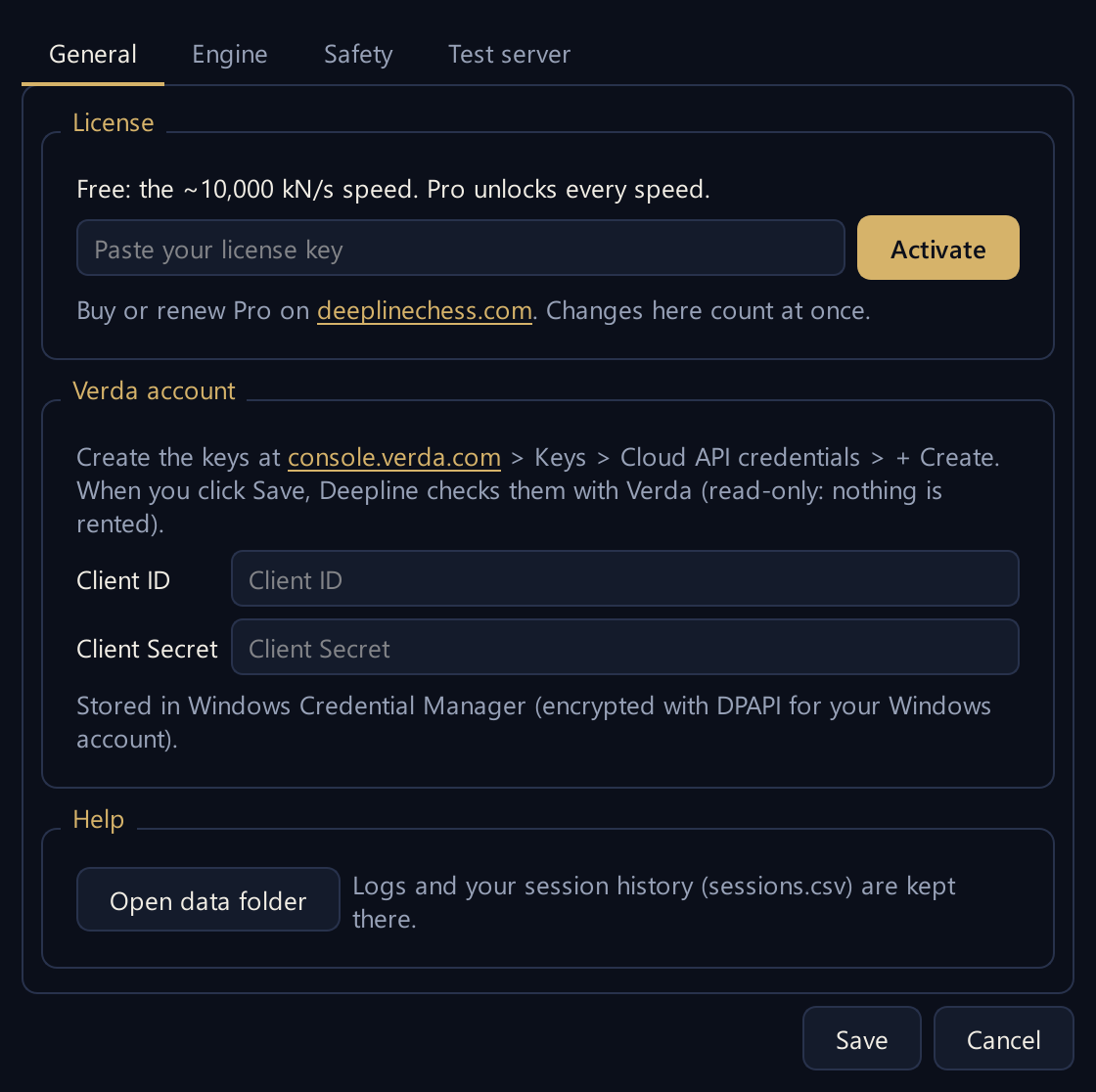
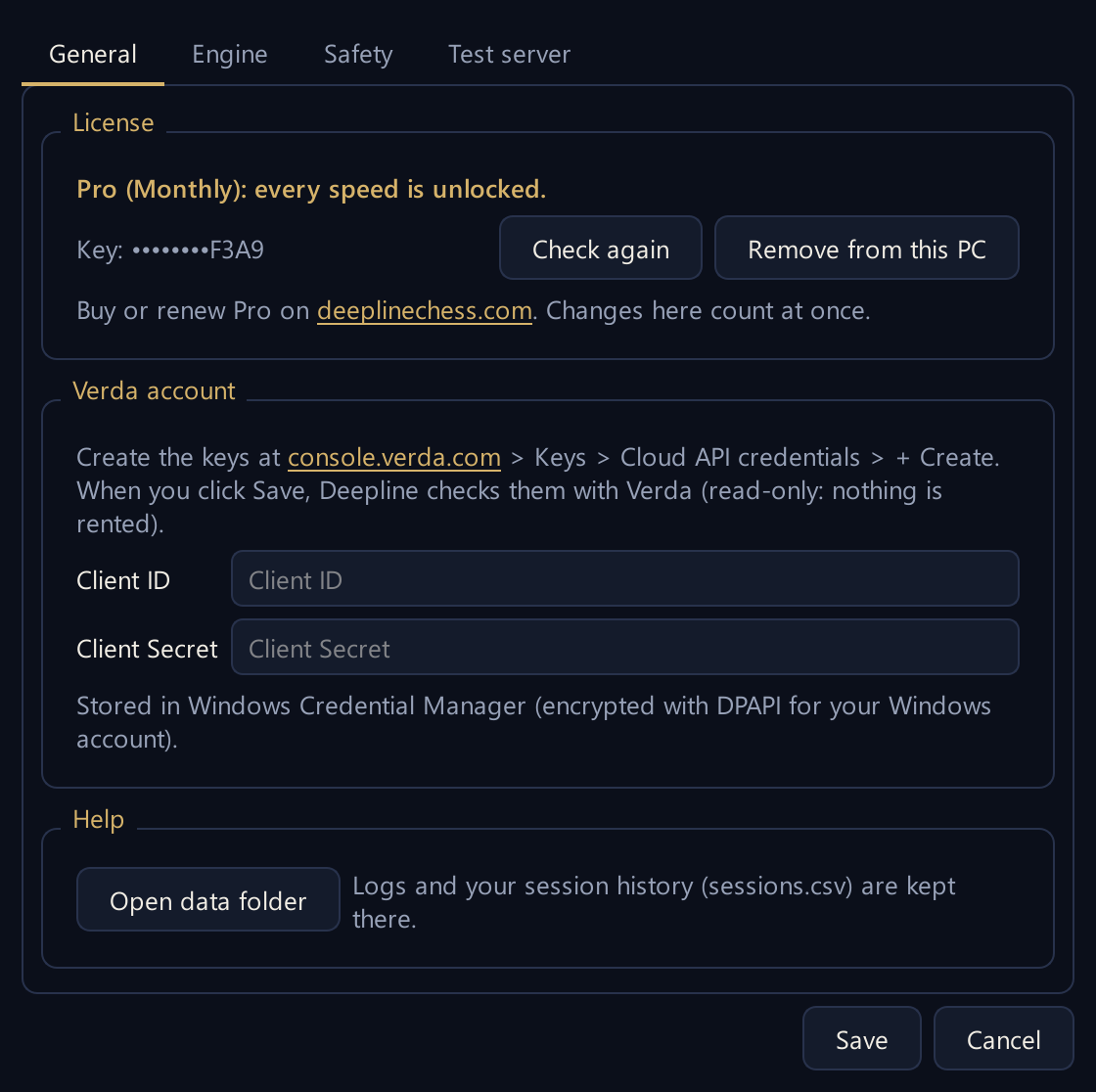
In Deepline click Settings (or Connect Verda account), paste the Client ID and Client Secret and click Save. Deepline checks the keys with Verda (it only reads your account; nothing is rented) and shows your balance.
Add the engine to ChessBase
- In ChessBase open a board, then Home > Add Kibitzer > Create UCI (or Engine > Create UCI engine).
- Choose this file (setup copied the path to your clipboard, so you can paste it):
C:\Users\<your name>\AppData\Local\Programs\Deepline\deepline-engine.exe - It appears as Stockfish 19 - Deepline: the official Stockfish 19, running on your cloud server.
Analyze
- Start analysis with Stockfish 19 - Deepline in ChessBase.
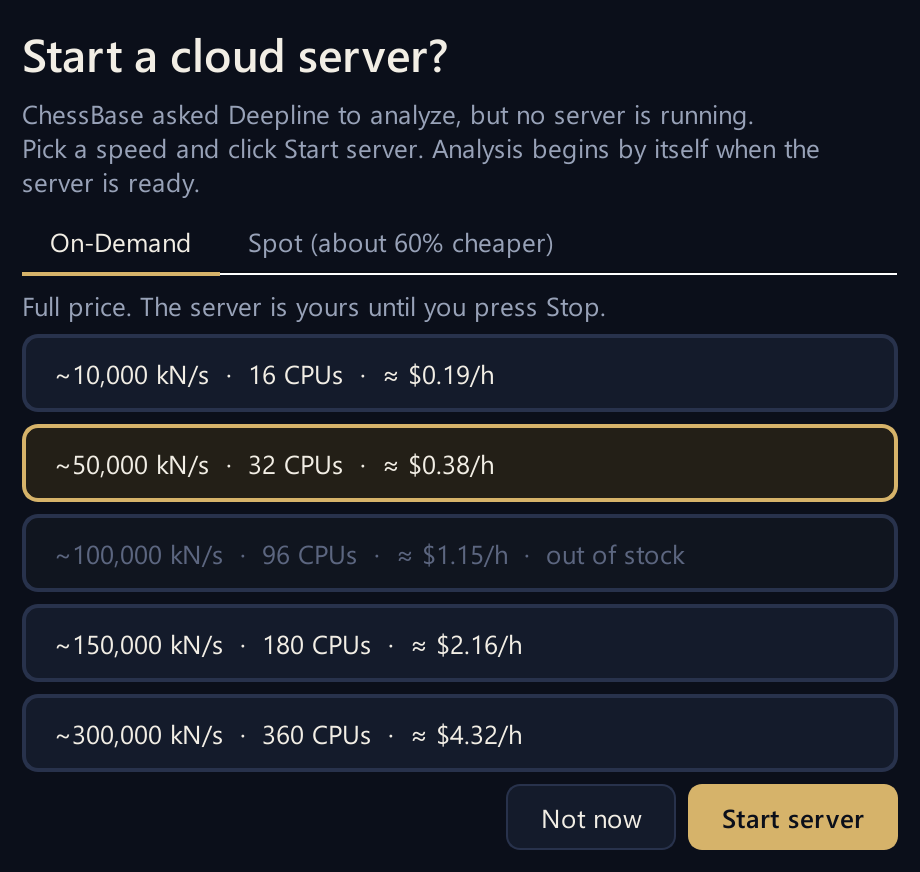
- If no server is running, Deepline asks Start a cloud server? Pick On-Demand (yours until you stop it) or Spot (about 60% cheaper, but Verda can take it back at any moment), click a speed, then Start server.
- After about 1 to 2 minutes the analysis starts by itself.
Stop (this is what saves money)
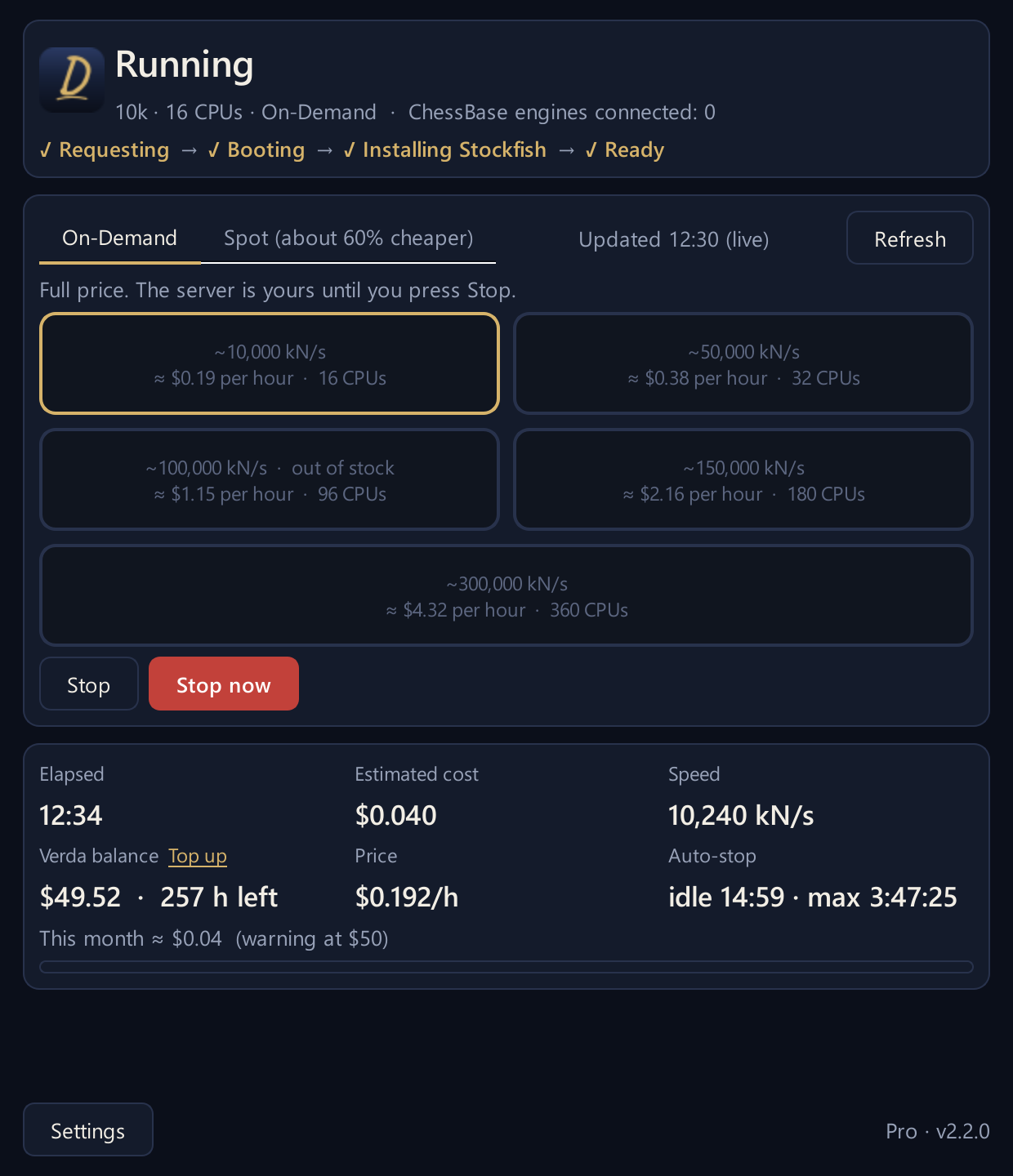
When you are done, click Stop now in Deepline (Stop waits 10 minutes first, in case you come back). Deepline deletes the server and checks with Verda that nothing is left. It also stops by itself after 15 minutes without analysis, and always after 4 hours; you can change these in Settings > Safety.
3. Free and Pro
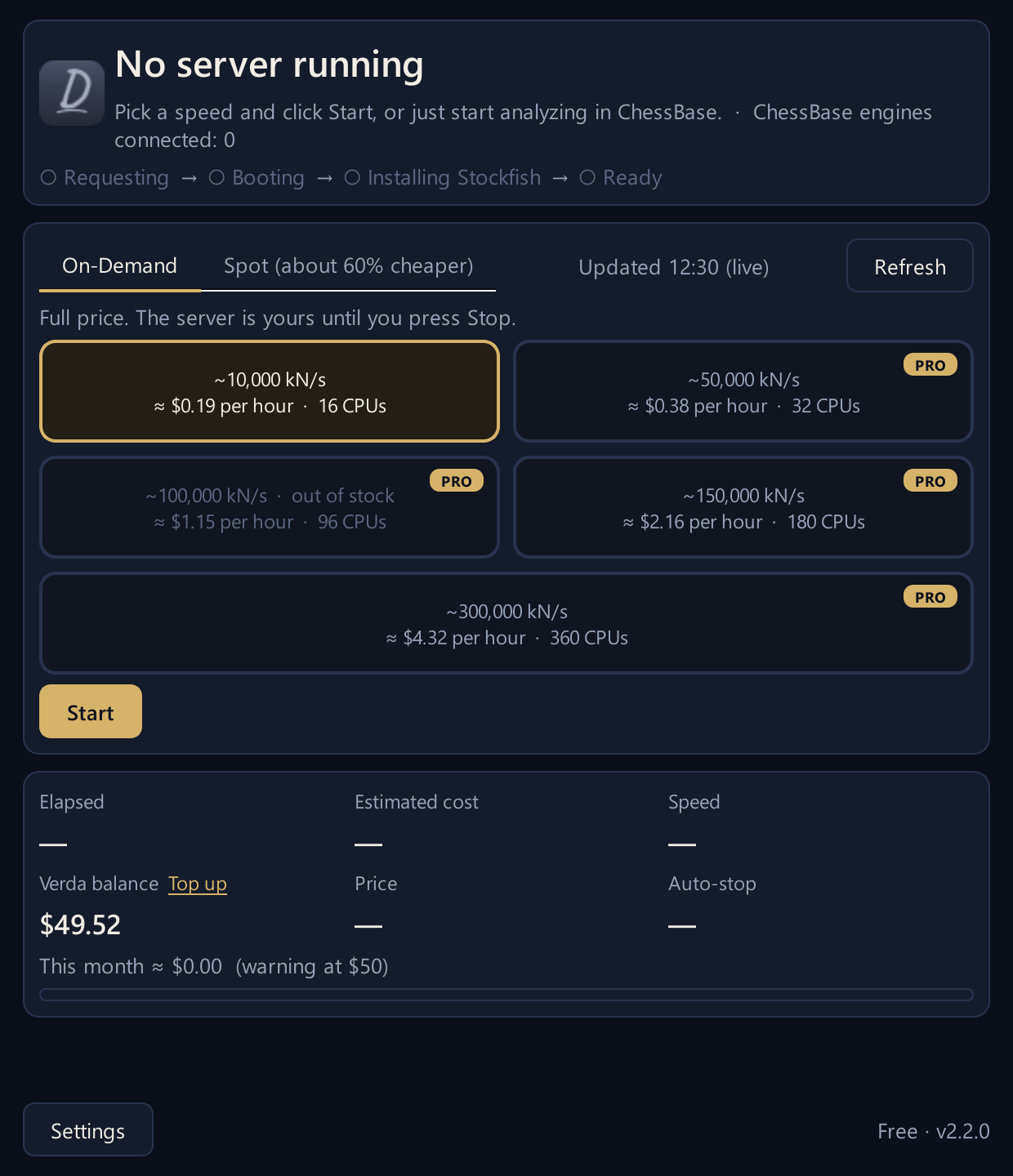
- Free: the ~10,000 kN/s speed, On-Demand or Spot, in ChessBase. The faster speeds show a gold PRO badge.
- Pro unlocks every speed, up to ~300,000 kN/s. Buy it on the pricing section; your license key arrives by email.
- Paste the key in Deepline: Settings > General > License, then Activate. One license: your Windows PC (with the ChessBase engine) + your Android phone.
- Changing computers? Click Remove from this PC on the old one first.
4. Android phone
- Install Deepline on your phone. (Google Play is coming soon; beta testers get the app from us.)
- On the Board tab, tap the Menu button (the grid at the top), then Cloud Engine.
- Under Verda account, enter the same Client ID and Client Secret and tap SAVE AND TEST.
- Under Start a server, choose Spot or On-Demand, then START next to a speed.
- Back on the board, the engine panel shows Stockfish 19 - Deepline. Tap play to analyze. (Menu > Engines switches between the cloud and the free engine on your phone.)
- Stop the server in Cloud Engine when you are done.
Live tournaments: the Events tab follows top events move by move, and you can analyze any position with either engine.
5. If something goes wrong
- "Verda did not accept these keys"
- Copy the Client ID and Client Secret again from the Verda console, or create new credentials there.
- ChessBase says "Start a server in Deepline first"
- No server is running and the Start window was closed. Start one in Deepline, or start the analysis again and click a speed.
- A speed says "out of stock"
- Verda has no free server of that size right now. Try another speed, or the other tab (Spot or On-Demand).
- "Verda took the Spot server back"
- This can happen with Spot. Deepline makes sure nothing is left on your account and lets you start again, as Spot or On-Demand.
- Deepline says a server from an earlier session is still there
- Choose Reattach to keep using it or Delete to remove it. Never create or delete servers by hand on the Verda website: Deepline does it.
- Still stuck?
- Write to hello@deeplinechess.com. In Deepline, Settings > General > Open data folder has the log file that helps us find the problem.